



Data is most important in today’s time and it is the responsibility of users to keep it safe. Microsoft Office 365 provides many applications such as PowerPoint, MS Word, Outlook/Exchange Online, Skype, etc. In this article, we will discuss MailsDaddy O365 Backup Tool. Having a backup of the Office 365 mailbox prevent users to face data loss situation by creating a backup of Office 365 with the Office 365 Backup Tool.
What is Office 365?
Office 365 or Microsoft 365 subscription-based cloud- platform provided by Microsoft. Some of the famous applications are MS Word, PowerPoint, Excel, Outlook, etc. Now Office 365 is known as Microsoft 365 to trade consumers and small businesses to highlight a wider introduction of products that reach beyond the market of Microsoft Office tools such as cloud-based productivity software and AI features.
What are the reasons to take a backup of Office 365?
There are many reasons for backing Office 365 data. Some important reasons are mentioned below read them carefully.
Data loss: Microsoft Office 365 provides only 50GB to 100GB space and the organization is always on the edge of low storage space. So, an O365 backup becomes necessary in such cases.
Expired Subscription Plan: An inactive Microsoft 365 account data is deleted forever after some time. Also, keeping and supporting the license of leaving employees could be heavy on the pocket of the organization. Backing up Office 365 data help users to come up from these situations.
Password Error: Nowadays Password error is getting high. Users are unable to open their Office 365 account if they were facing a password error. So taking a backup of Office 365 to PST can help users to secure their files.
Why MailsDaddy Office 365 Backup Tool?
Microsoft 365 Backup Tool is an expert solution to migrate Office 365 mailboxes to PST, MBOX, MSG, and EML file formats. Users can take backups of multiple accounts by admin login option. Download complete data from Office 365 including emails, contacts, calendars, etc with the help of the tool. Some of the best benefits of Office 365 Backup Tool are mentioned below:
- Maintains the folder structure: The Microsoft 365 Backup Tool maintains the structure of the folder while converting Office 365 to PST. This feature works for both admin and users.
- Backup Selected Folder: With this feature, users can take a backup of selected folders from Office 365 to PST or in any other file format. This option helps users to prevent exporting unwanted data.
- Office 365 Backup with Impersonation: The Office 365 to PST export tool helps the administrator to take a backup of multiple users’ mailboxes to PST file format.
- Supports all Outlook Editions: The extracted Outlook PST file supports all Outlook versions including Outlook 2019, 2016, 2013, 2010, and all the earlier versions.
- Compatible with all Windows OS: The Microsoft 365 backup tool is compatible with all Windows Operating Systems including Windows 11, 10, 8.1, 8, 7, Vista, XP, etc. for Office 365 Export to PST.
Steps to take a backup with MailsDaddy Office 365 Backup Tool
Download or Install MailsDaddy Office 365 Backup Tool.
Phase 1
For getting Tenant Id, Client Id, & Client Secret Value from Azure.
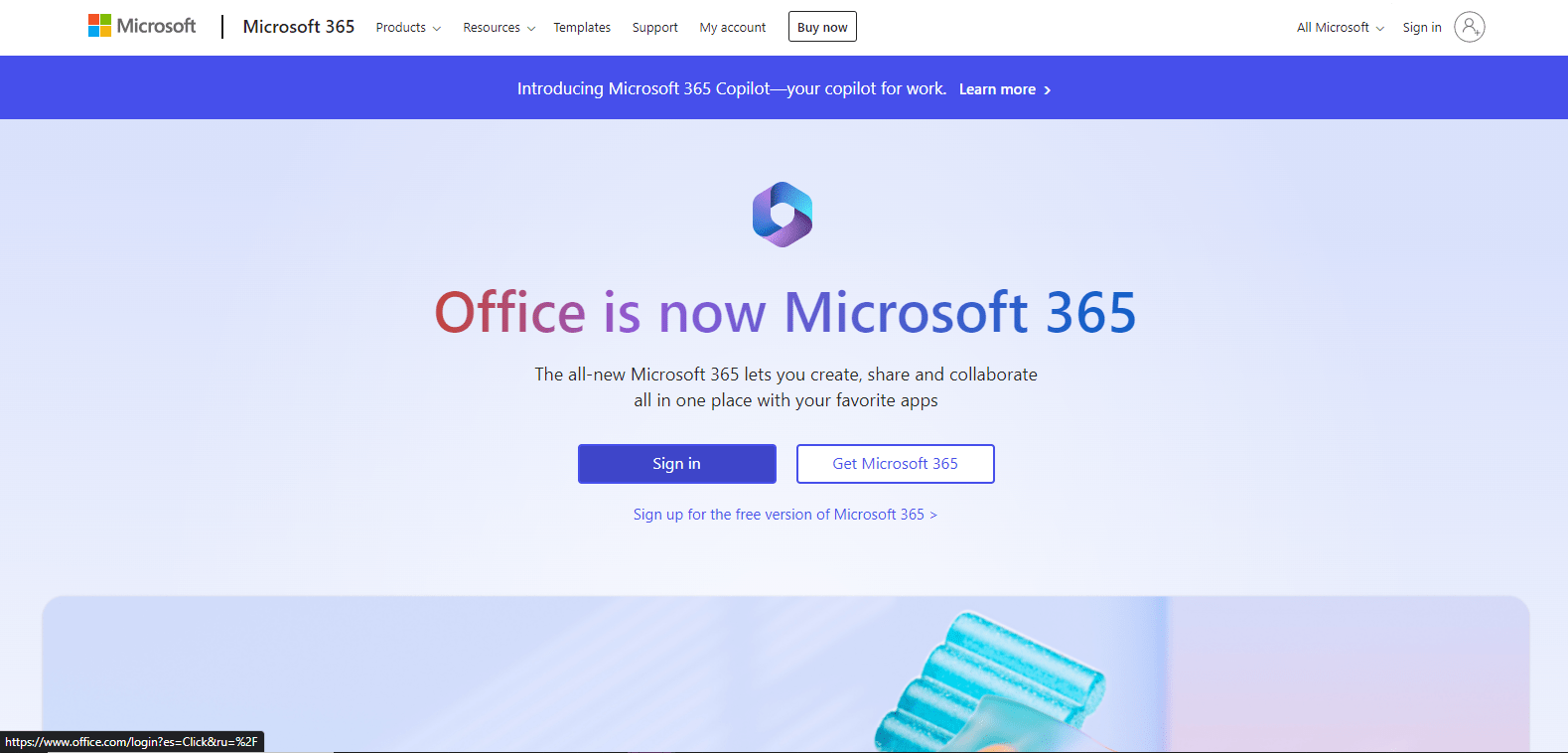
Step 1: Sign in to your Office 365 account.
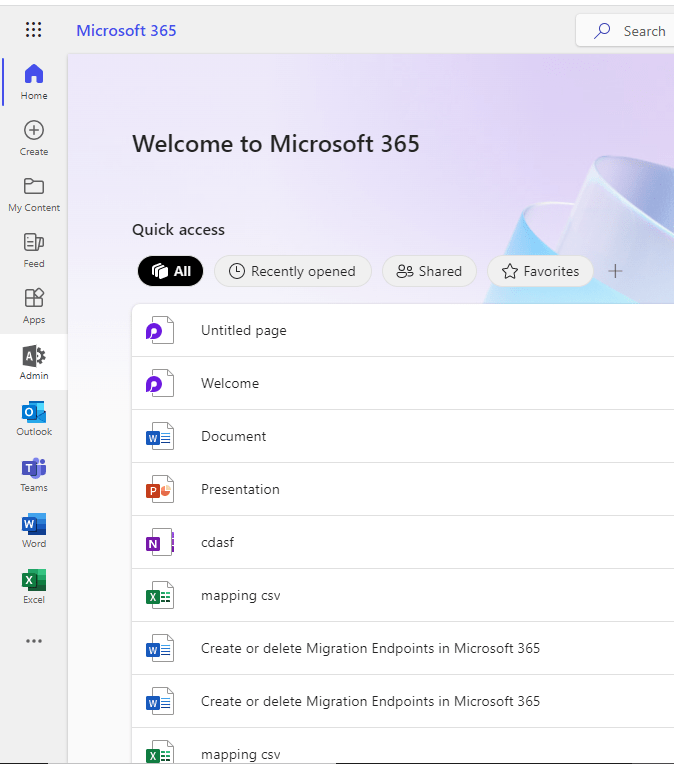
- Now click on Admin Center
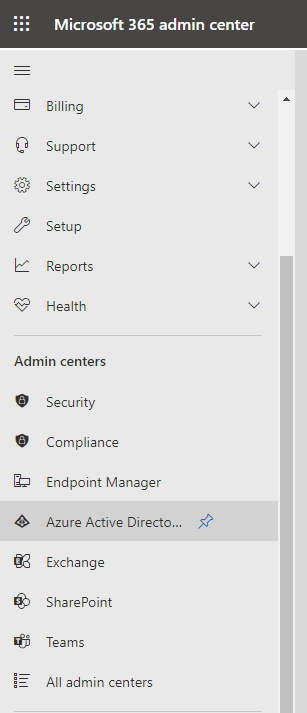
- Now tab on the show all tab and then select Azure Active Directory.
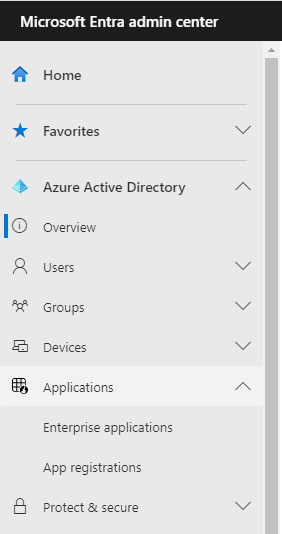
- Now click on Application and choose App registration from the options.
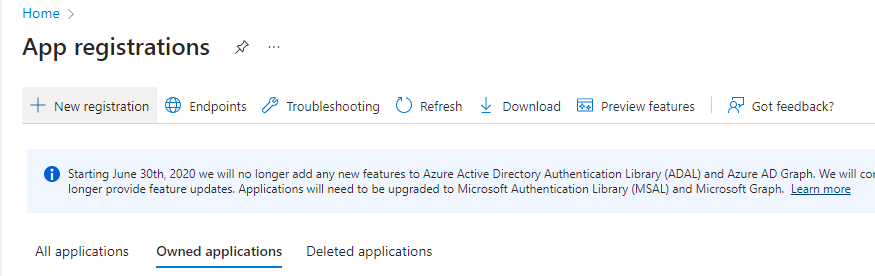
- Click on New Registration.
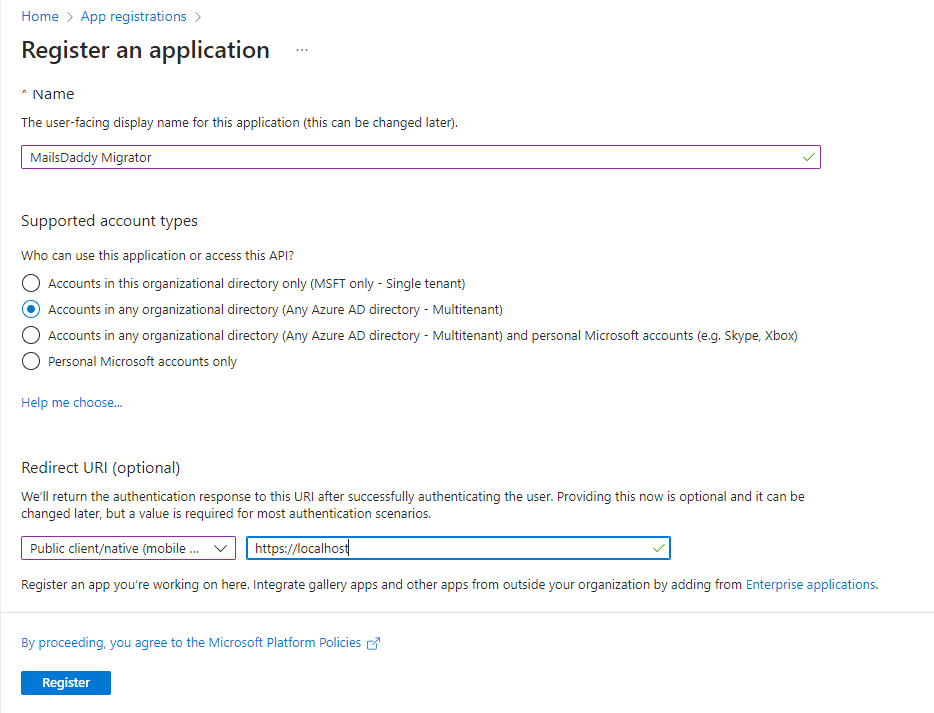
- Now the new window has been opened first fill in the name box and write MailsDaddy Migrator > Choose Account in any organizational directory (Any Azure AD directory- Multitenant) as Supported account types > Choose Redirect URL (Optional) > Tab on Register.
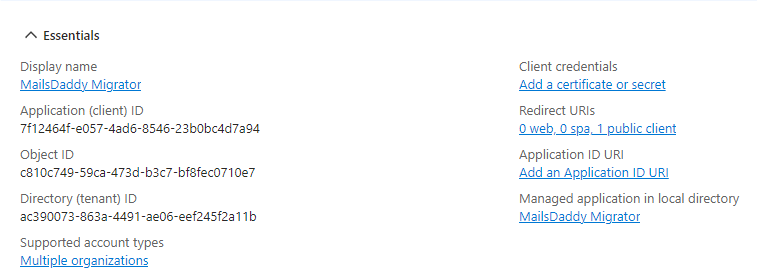
- Copy the Client Id and Tenant Id and save them in notes.
Step 2: Create and Configure Client Secrets.
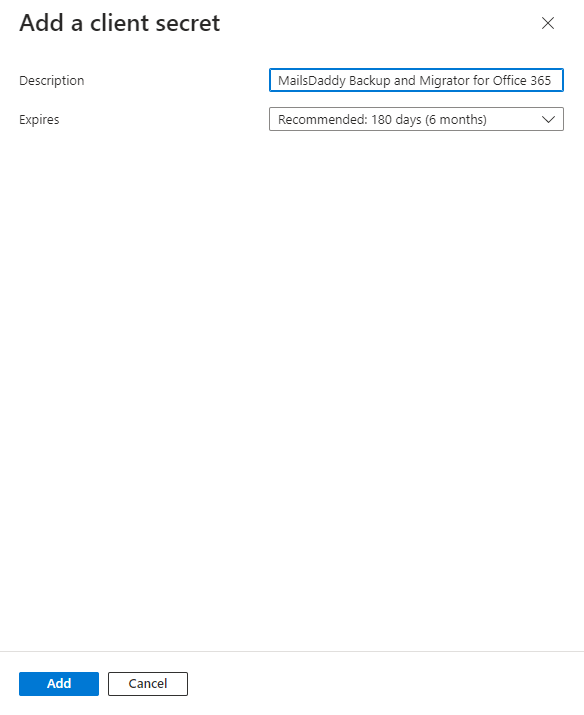
- Click Certificate & Secrets and Select New client secret.
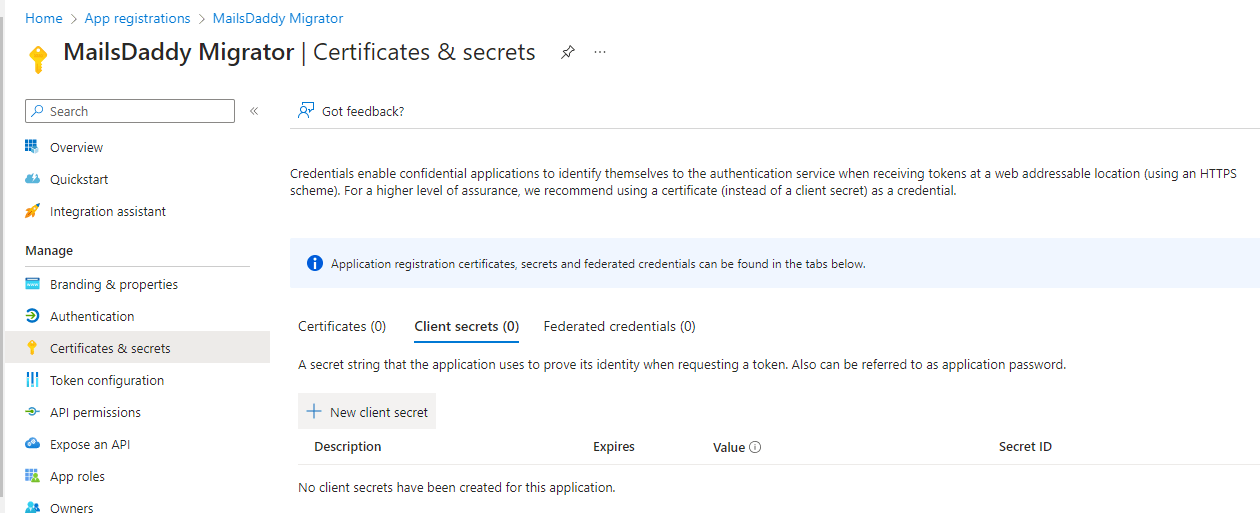
- Now add the description and select Add.
- Now copy the Value and save it in notes.

Step 3: Grant the Permissions.
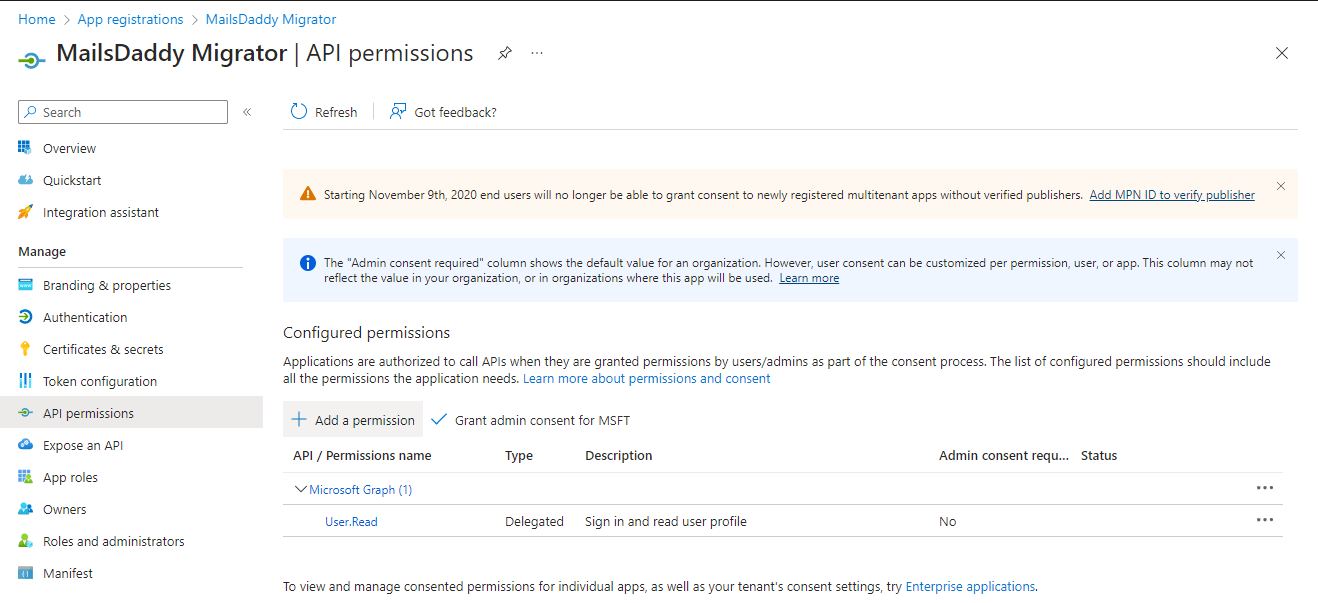
- Click on API Permission > Choose to Add a Permission.
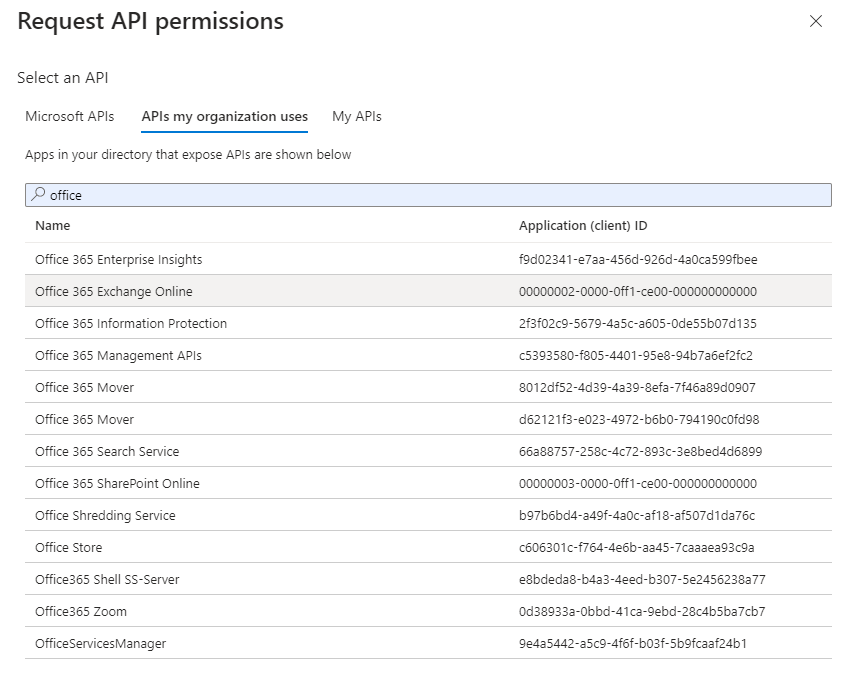
- Select APIs my organizations > Search Office and then Choose Office 365 Exchange Online.
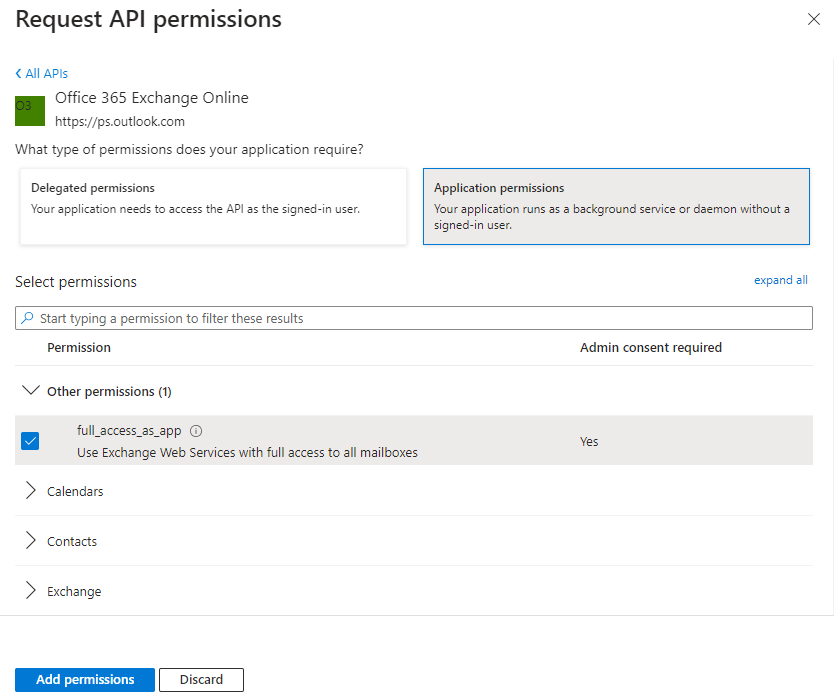
- Click on Application permissions > Select full access as the app and then Press on Add Permissions.
- Now click on Grant admin consent for MSFT and then Press on
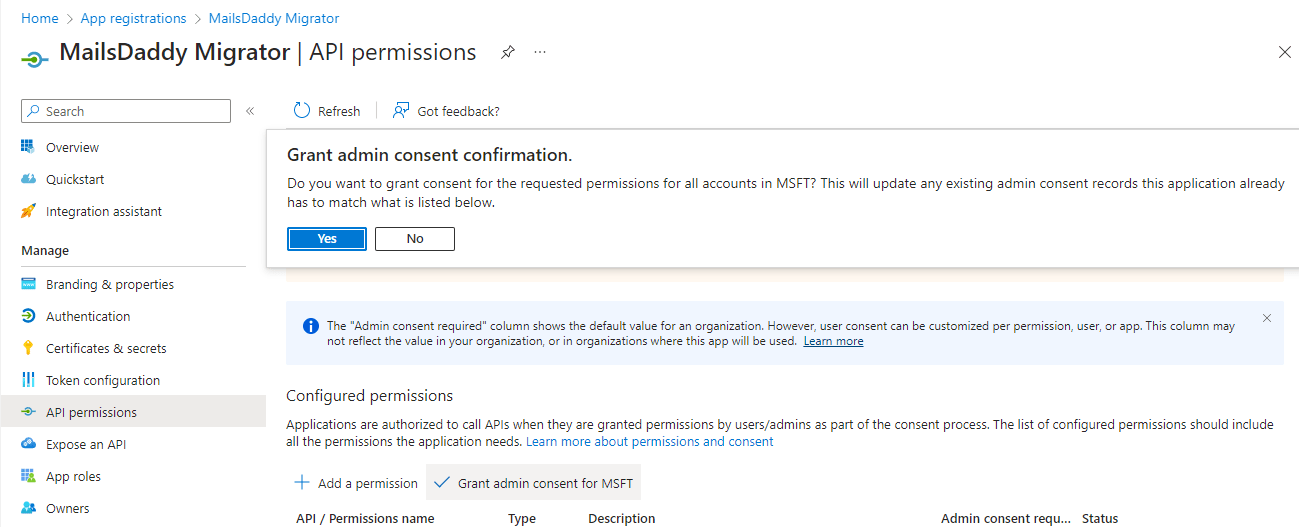
Phase 2
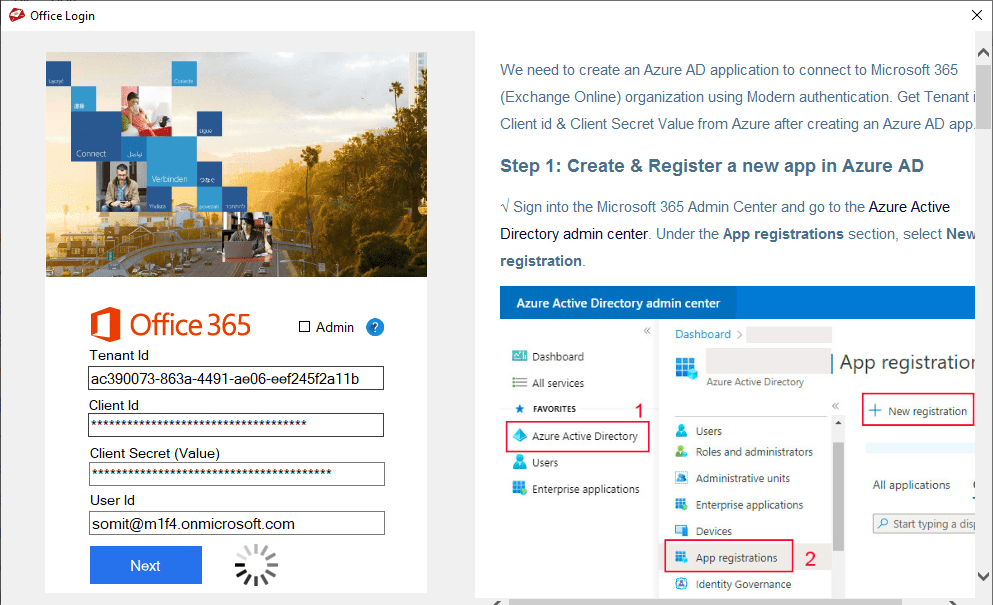
- Open the Office 365 Backup Tool and fill in all IDs Id that you saved in your notes.
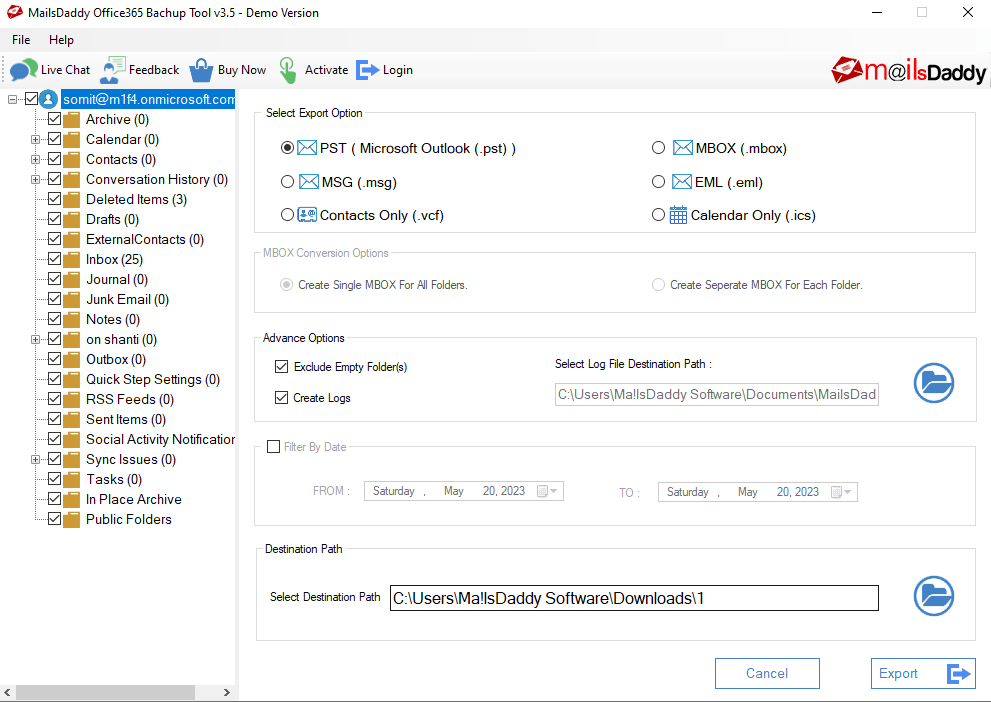
- Now select the file > Select Export Option as PST > Select log file destination path > Select the Destination path and click on
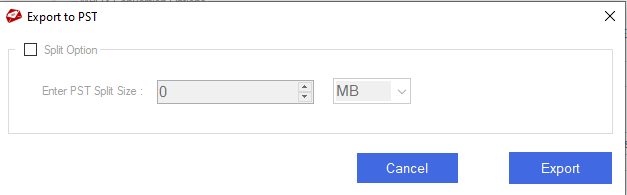
- The Office 365 Backup Tool has the option to split the PST file into desired file sizes. If you want to split the PST file size then you can use the split option and click on the Export
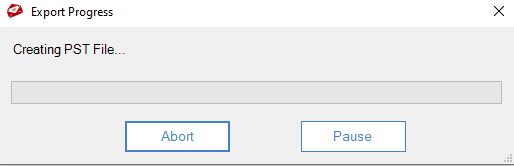
- The conversion starts automatically.
Conclusion: Multiple Office 365 backup solutions are available on the web but Office 365 Backup Tool is the best solution and easy to use. Users do not require a technical background to use this tool. If you have any inquiries related to this tool then contact with MailsDaddy Supports teams at [email protected]